Archive for Software for Linux

Astronomy Cameras On Linux - Unicap 0.2.22 Released!

The capture program for Linux is called ucview, which deploys the unicap library.

I am delighted to announce that unicap 0.2.22 has just been released.

It now ships with the following improvements:

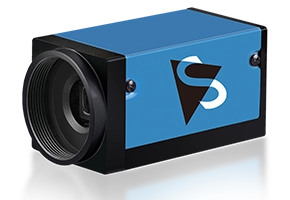
  • Better support for The Imaging Source USB 2.0 astronomy and industrial cameras
    (download the uvcvideo driver)
  • Added and fixed some color conversion routines
  • GTK+ apps can register their own color format conversion callback
  • Some minor fixes in the unicapGTK library
  • Support for recent uvcvideo drivers
  • French translation (thanks to Kiki Novak!)
  • Packages for Ubuntu Hardy

You can download the source code package from the unicap web site:
http://www.unicap-imaging.org/download.htm

Packages for Ubuntu 7.04 (Feisty), Ubuntu 7.10 (Gutsy) and Ubuntu 8.04 (Hardy) are in the repositories:
http://www.unicap-imaging.org/using_repositories.htm

Comments

Better Support For Astronomy Cameras On Linux

We have talked about using The Imaging Source astronomy cameras on Linux previously (here, here and here).

The capture program for Linux is called ucview, which deploys the unicap library.

I am delighted to announce to better support the Linux astronomy cameras community, a set of unicap forums have been launched:

If you have any matter related to running The Imaging Source astronomy cameras on Linux with ucview and unicap, please do not hesitate to post your questions into the above forum.

The forum is maintained by the program’s chief developer, Arne Caspari.

Comments

USB 2.0 Astronomy Cameras On Ubuntu 7.04 (Feisty Fawn)

Yesterday, I blogged about using The Imaging Source FireWire astronomy cameras on Ubuntu 7.04 (Feisty Fawn). Today, I would like run through the same procedure, but with USB 2.0 astronomy cameras.

Step #1: Set up the hardware

Connect a USB 2.0 astronomy cameras to the USB 2.0 port on your computer with a simple USB cable. Please make sure that your PC does indeed have a USB 2.0 port and not the older USB 1.0. If you purchased your PC within the last four years, you will certainly have a USB 2.0 port. The Imaging Source USB 2.0 astronomy cameras do not support USB 1.0, simply because the cameras produce so much data that it is impossible to transfer it all over the slow USB 1.0 interface.

Step #2: Set up the USB 2.0 driver

This is the most complicated step of the whole procedure. We need to download and compile the USB 2.0 driver. First, however, you need to install a compiler and linux headers:

sudo apt-get install build-essential linux-headers-generic

Now we have an environment in which the USB 2.0 driver can be compiled.

Delete the shipped USB 2.0 driver:

sudo rm /lib/modules/2.6.20-15-generic/kernel/ubuntu/media/usbvideo/uvcvideo.ko

Change to your source code directory:

cd /usr/src/

And download the USB 2.0 driver source code:

sudo wget http://www.astronomycamerasblog.com/wp-content/
uploads-extra/linux-uvc_trunk_arne.tar.gz

Extract the files:

sudo tar xfzv linux-uvc_trunk_arne.tar.gz

And change directory into the source code tree:

cd linux-uvc_trunk_arne

Compile the code:

sudo make

Install the new USB 2.0 driver:

sudo make install

You now have the latest USB 2.0 driver installed on your PC.

Step #3: Set up the software

The software that is required to use The Imaging Source USB 2.0 astronomy cameras on Ubuntu 7.04 is available from a 3rd party project and released under a General Public License (GPL) and a commercial license.

The project is called unicap and has its own homepage at unicap-imaging.org. Maintained by Arne Caspari, the project is sponsored by The Imaging Source.

To access and install the software, you first need to update your sources.list. This can be done with:

sudo gedit /etc/apt/sources.list

At the end of the file, add the following two lines:

# The Imaging Source Cameras
deb http://unicap-imaging.org/packages feisty main

Save and close the file.

Update the repository listing:

sudo apt-get update

And install the video capture application (ucview) with all its dependencies:

sudo apt-get install ucview

A detailed description of these steps can be found on the project’s web site.

Reboot.

Now, you can start ucview (the capture application) with:

ucview

You should see the following application window:

Please post requests for support in the comments section below.

References

Image in screenshot is copyright Dierick Vercouter.

Comments (4)

Taking A Closer Look At Unicap

Following my post yesterday about how to use The Imaging Source FireWire astronomy cameras on Ubuntu 7.04 (Feisty Fawn), below are few screenshots of unicap running.

Main application window with about dialog

Adjustments dialog -> Exposure tab

Adjustments dialog -> Device tab

Adjustments dialog -> Color tab

Adjustments dialog -> Video tab

Preferences dialog -> Video tab

Preferences dialog -> Audio tab

Preferences dialog -> Image tab

Preferences dialog -> Plugins tab

Image in “main application window” screenshot is copyright Dierick Vercouter.

Comments

FireWire Astronomy Cameras On Ubuntu 7.04 (Feisty Fawn)

An ever increasing number of customers are writing to us, asking how to use The Imaging Source FireWire astronomy cameras on Ubuntu 7.04 (Feisty Fawn). This is quite possible! How is described in this blog entry.

Step #1: Set up the hardware

The first step is to connect a FireWire astronomy camera to your PC and to ensure that the camera is being powered.

Please refer to the white paper “FireWire Cameras - Cables, Power Supplies, Interface Boards” for detailed information on which cable and interface card are required for this process.

Once you are sure that you have set up the hardware correctly, it is time to look at the software.

Step #2: Set up the software

The software that is required to use The Imaging Source FireWire astronomy cameras on Ubuntu 7.04 is available from a 3rd party project and released under a General Public License (GPL) and a commercial license.

The project is called unicap and has its own homepage at unicap-imaging.org. Maintained by Arne Caspari, the project is sponsored by The Imaging Source.

According to the project’s web site:

unicap provides a uniform interface to video capture devices. It allows applications to use any supported video capture device via a single API.

unicap offers a high level of hardware abstraction while maintaining maximum performance. Zero copy capture of video buffers is possible for devices supporting it allowing fast video capture with low CPU usage even on low-speed architectures.

To access and install the software, you first need to update your sources.list. This can be done with:

sudo gedit /etc/apt/sources.list

At the end of the file, add the following two lines:

# The Imaging Source Cameras
deb http://unicap-imaging.org/packages feisty main

Save and close the file.

Update the repository listing:

sudo apt-get update

And install the video capture application (ucview) with all its dependencies:

sudo apt-get install ucview

A detailed description of these steps can be found on the project’s web site.

Next you need to add the group “firewire” for your FireWire astronomy camera:

sudo addgroup firewire

And assign this group to the currently logged on user (in this case “jon”).

sudo addgroup jon firewire

Finally, edit the following file:

sudo gedit /etc/udev/rules.d/40-permissions.rules

Look for the following line (ca. line 26):

KERNEL=="raw1394", GROUP="video"

And change to:

KERNEL=="raw1394", GROUP="firewire"

Save and close the file.

Reboot.

Now, you can start ucview (the capture application) with:

ucview

You should see the following application window:

Please post requests for support in the comments section below.

References

Image in screenshot is copyright Dierick Vercouter.

Comments (2)